


Setup instructions
Setup Guide | A step-by-step guide for first-time users – from unboxing to wireless use.
One of the biggest misconceptions about upgrading to wireless Apple CarPlay or Android Auto is the belief that it requires a complex installation, dashboard removal, or a visit to an audio specialist.
In practice, it's quite simple: if you can connect a USB cable and operate a smartphone, you're already well-equipped for the setup. Here's how to set up your wireless system in a few, uncomplicated steps.
Phase 1: Preparation & Connection
- Clear signal paths: Activate Bluetooth and Wi-Fi on your smartphone. Make sure your device is not connected to other Wi-Fi or Bluetooth networks. If possible, also remove existing hands-free connections from your phone and vehicle system settings to avoid signal interference.
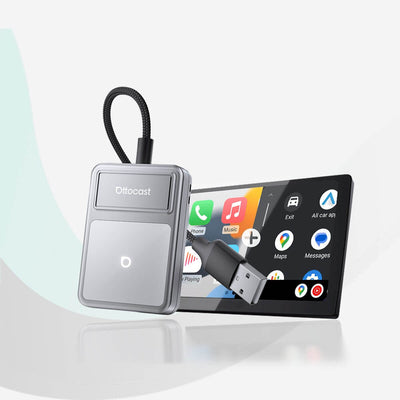
- Plug in the device: Plug the adapter directly into your vehicle's dedicated data USB port for CarPlay/Android Auto.
- System start: Wait a moment until the setup interface appears on the vehicle display.
Phase 2: Establishing the wireless connection
- Find device: Open the list of Bluetooth devices on your smartphone and select the device whose name begins with AUTO-xx.
- Pair: When the system message appears, select "Pair" on your smartphone.
- Grant access: Once connected, confirm the last notifications on your device and simply tap "Use CarPlay".
Phase 3: Set up once, use permanently
Once the user interface appears on your display, the initial setup is successfully completed. You will not need to repeat these steps in the future. When you start your vehicle, the adapter automatically recognizes your paired smartphone and establishes the wireless connection independently on every drive.